
- License
- GPL-3.0-or-later + proprietary component
- Project Website
- altlinux.space
- Report an Issue
- altlinux.space
PlayStation camera as a webcam
Work in progress
Only the PlayStation 5 camera has been verified so far. The PlayStation 4 camera should work the same way but is untested.
The PlayStation 4 and PlayStation 5 cameras are built on the OmniVision OV580 sensor and can work as ordinary webcams, but not out of the box. On power-up the camera starts in a bootloader mode (USB Boot, 05a9:0580) and waits for firmware to be uploaded over USB. Until that happens, the system does not see it as a camera.
The firmware has to be uploaded again on every power cycle. On ALT this is automated by the PS-Camera packages: once the camera is plugged in, the firmware is uploaded automatically, /dev/video appears, and the camera is ready to use — with no manual steps and no root.
Внимание
Connect the camera to a USB 3.0 (SuperSpeed) port. Over USB 2.0 the upload is unreliable and may hang.
Installation from an external repository
Disclaimer
This is a third-party repository. BaseALT and ALT Gnome are not responsible for its contents or the packages built in it. Add and use it at your own risk.
Add the repository for the architectures you need:
su -
apt-repo add rpm https://altlinux.space/api/packages/PS-Camera/alt/alt.repo x86_64 classic
apt-repo add rpm https://altlinux.space/api/packages/PS-Camera/alt/alt.repo noarch classic
apt-get updateThen install the package:
su -
apt-get install ps-cameraepm -i ps-cameraThe ps-camera meta-package pulls in the firmware loader, the firmware itself and the settings module. After installation, just plug the camera into a USB 3.0 port and open any camera application, such as Snapshot or Cheese.
Configuration via Tuner
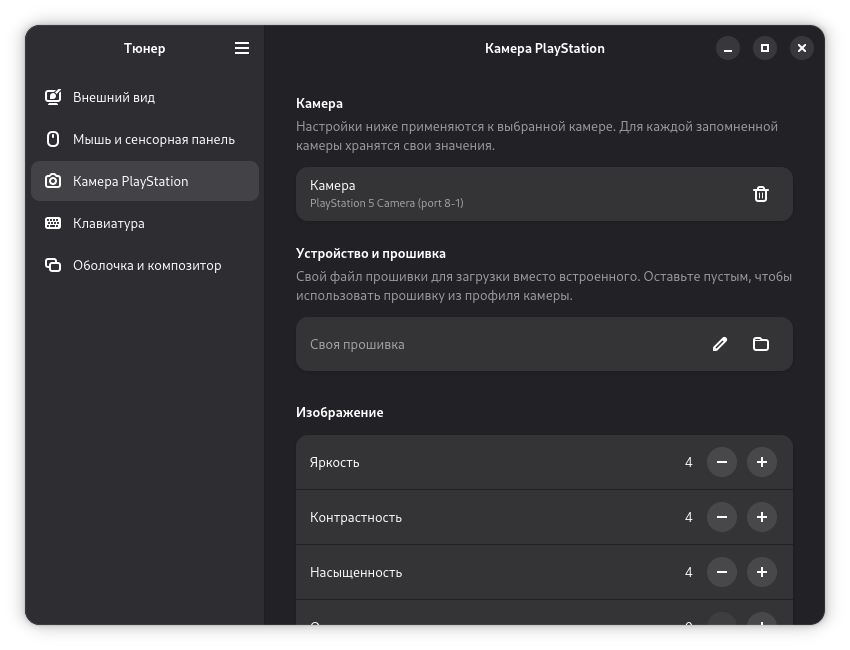
The packages also install a module for Tuner that adds a PS Camera page with image, white-balance and exposure settings.

Each camera is remembered separately by its USB port, so when several cameras are used each keeps its own settings. The preview button opens the camera in an installed viewer.
Manual firmware upload
The firmware can also be uploaded manually — for example, to understand how it works, or for debugging.
Make sure the camera is detected in bootloader mode:
lsusb | grep 05a9
# ... ID 05a9:0580 OmniVision Technologies, Inc. USB BootUpload the firmware (root required):
su -
ps-camera-firmware-loader /usr/lib/firmware/pscamera/ps5.binThe camera restarts as 05a9:058c and shows up in /dev/video*:
v4l2-ctl --list-devicesThe automation does exactly the same: a udev rule watches for the camera in mode 0580, a systemd service uploads the firmware, and the camera re-enumerates as a UVC device that the kernel binds with the uvcvideo driver.
Информация
ps-camera-firmware-loader is a C port of PlayStation-Camera-Firmware-Loader by Raleigh Littles, which is based on OrbisEyeCam by psxdev. The build sources are in the project repository.
Troubleshooting
The firmware is uploaded, but the camera does not appear in Tuner. The camera list is populated by a user background service. It usually starts on its own; if it did not, start it manually:
systemctl --user start pscam-settings.serviceBlack image. Sometimes the firmware starts with a stuck auto-exposure. Switch the exposure mode on the camera page in Tuner.
The upload hangs. This almost always means the camera is on a USB 2.0 port — plug it into a USB 3.0 port instead.
Roadmap
- PlayStation 5 camera
- Verify the PlayStation 4 camera (expected to work unchanged)