

Steam
Клиент для платформы Steam
ProprietaryRegional restrictions

Developer
Valve Software
- Лицензия
- Собственная
- Project Website
- store.steampowered.com
- Report an Issue
- github.com
Steam is an online digital distribution service for computer games and programs developed and maintained by Valve. It serves as a technical copyright protection tool, a platform for multiplayer games and streaming, and a social network for players. The Steam software client also provides installation, regular updates and cloud saves of games, text and voice communication between players.
Информация
For Steam to work correctly, it is recommended to install using epm play
Steam can be installed in any familiar and convenient way:
Install via GNOME Software
In three clicks 😊
Follow the link install Steam and confirm the “open application” operation in the browser. The Application Center will open, select the source "Sisyphus" in it, and click the "download" button
Installation via terminal
su -
apt-get update
apt-get install steamepm -i steamIf you have the Flatpak package, you can install Steam with one command:
flatpak install flathub com.valvesoftware.SteamOr using the GNOME Software 🤔
Follow the link to install Steam, and confirm the "open application" operation in the browser. After this, the Application Center will open, select the source "Flathub" in it and click the "download" button
If you have the eepm package, you can install Steam with one command:
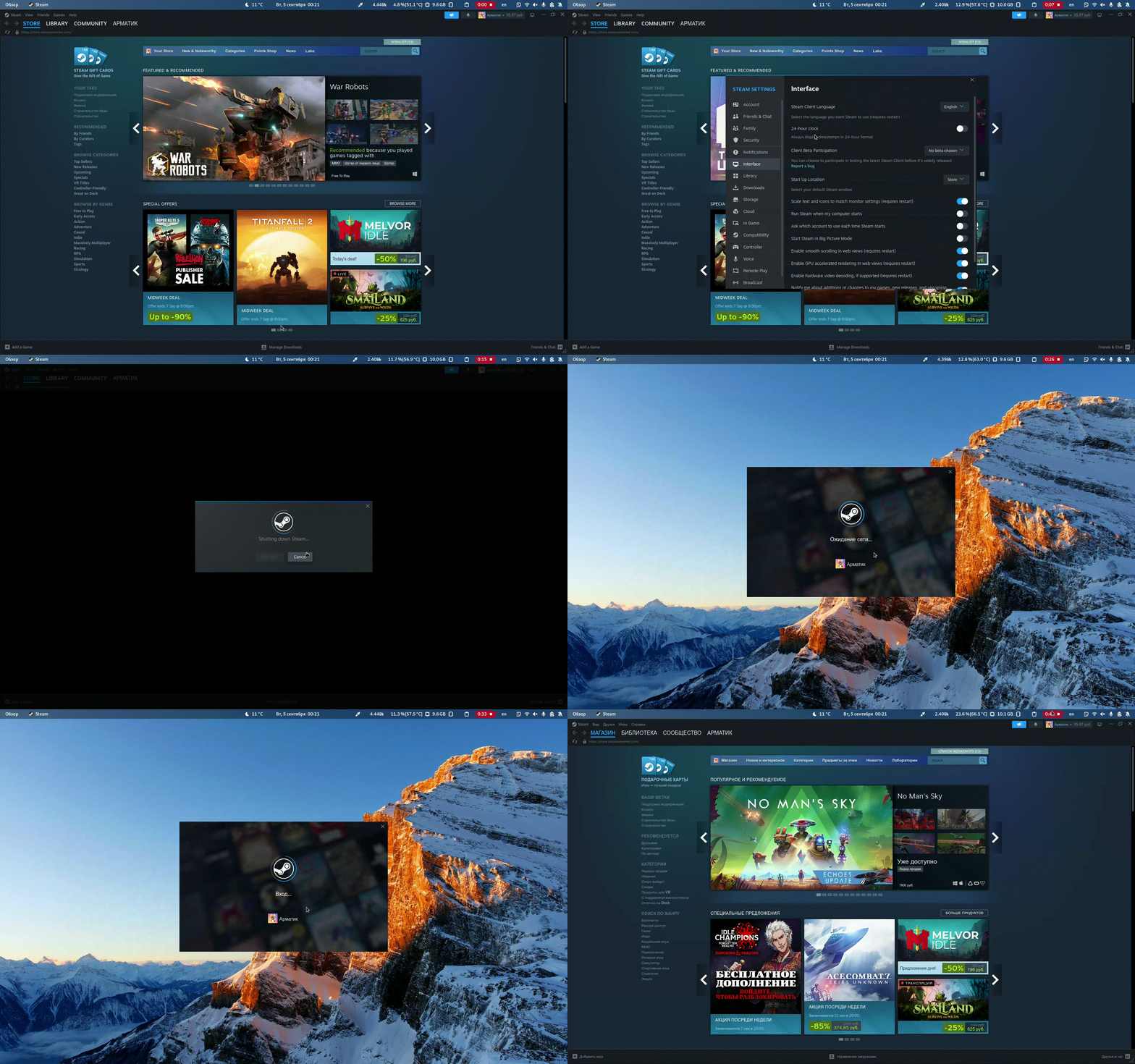
epm play steamLaunch the client and look for Steam at the top of the application. When you click on it, a context menu will open, select Settings. In the settings, go to the Interface section and click on English to open the languages menu. Select “Russian” from the drop-down list and click OK. After this, a window will appear informing you that you need to restart the application to apply the changes. Click Restart. Now Steam should launch in Russian.
Proton is a tool released by Valve Software that integrates with Steam Play to make playing Windows games on Linux as easy as clicking the "Play" button on Steam. Inside, Proton contains other popular tools such as Wine and DXVK that the player would otherwise have to install and maintain themselves.
Launch the client and look for Steam at the top of the application. When you click on it, a context menu will open, select Settings. In settings, go to the compatibility section and select:
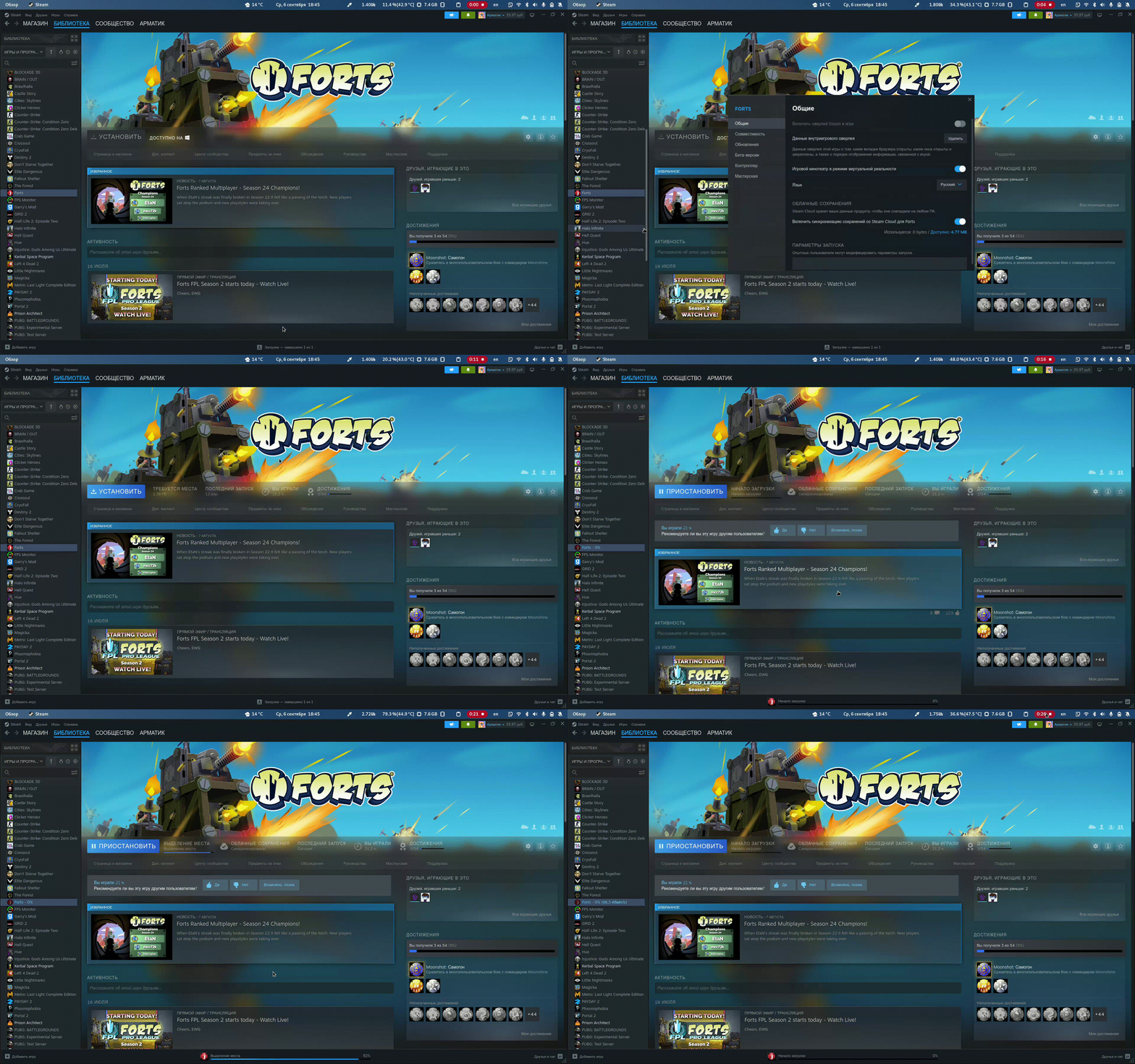
Proton 8.x.xIt is also possible to enable Steam Play support for a specific game. In the LIBRARY section in the list of games, select a game from the list, call the RMB context menu and select properties. In the settings window, under Compatibility, enable the Force the selected Steam Play compatibility tool options and select the Proton branch
ProtonDB - a database of reports from players with user ratings. A growing selection of offerings allows you to customize your games as Proton continues to improve. In addition to this, you can explore the game catalog.
To run the Steam client, you need to install additional packages:
su -
apt-get install i586-xorg-drv-radeonepm -i i586-xorg-drv-radeonTo run the Steam client, you need to install additional packages:
su -
apt-get install i586-libGL i586-libGLU i586-xorg-dri-intelepm -i i586-libGL i586-libGLU i586-xorg-dri-intelMake sure that the English keyboard layout is selected on your system when starting the game. If this is not the case, close the game, change the layout to English and start the game again.
You can also add a launch option to the game, this should solve the problem:
-input_button_code_is_scan_code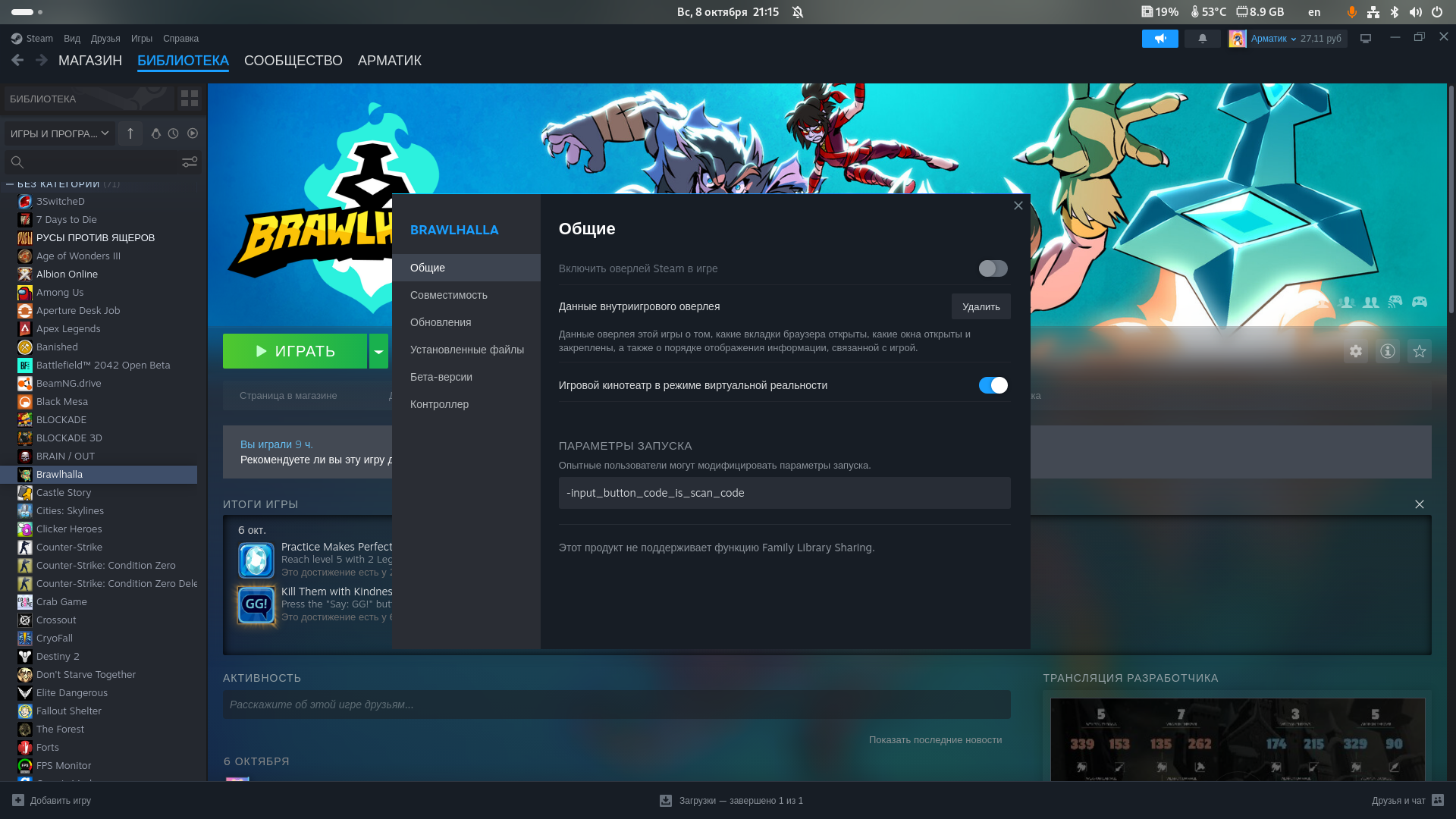
You can use the xset utility, which runs at the Xorg level in desktop environments.
Disable repeat from keyboard:
xset r offИнформация
Typically, this problem is associated with a bug in the ibus library, issue discussion
This method works in both XORG and Wayland sessions.
Re-enable repeat from the keyboard with the same delay and speed settings:
xset r onAs a rule, this problem is caused by the connection of “Unknown Monitor” in the list of devices for users of NVIDIA graphics devices with proprietary 535.xx drivers. A workaround is described on the page NVIDIA
Steam Flatpak
For ease of setup, we recommend installing the Flatseal application, and add to the list of variables exported to the application the parameter STEAM_FORCE_DESKTOPUI_SCALING, for example with a scaling factor value of 1.25:
STEAM_FORCE_DESKTOPUI_SCALING = 1.25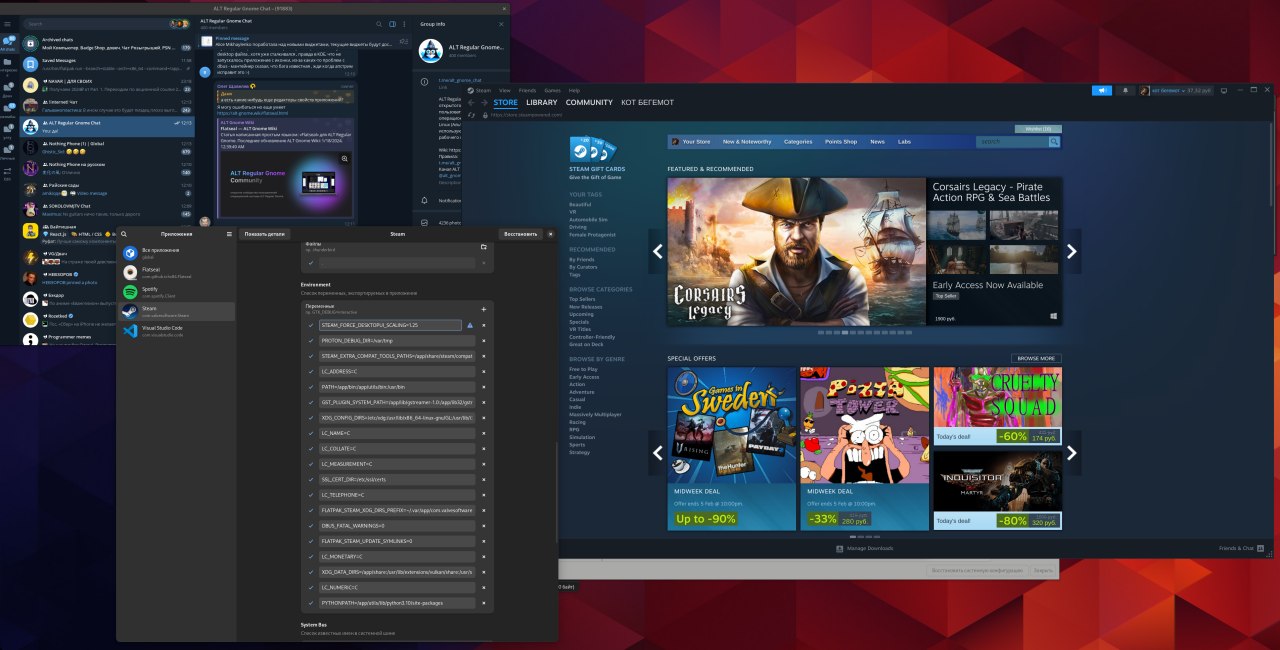
or via terminal:
flatpak override --user --env=STEAM_FORCE_DESKTOPUI_SCALING=1.25 com.valvesoftware.Steam